Blackbaud has integrated the Respondus Lockdown Browser into its assessment functionality. Below are instructions on how install or update the browser along with issue you might encounter when installing.
INSTRUCTIONS:
STEP 1) Navigate to the Assignment Center or class page in KnightSite.
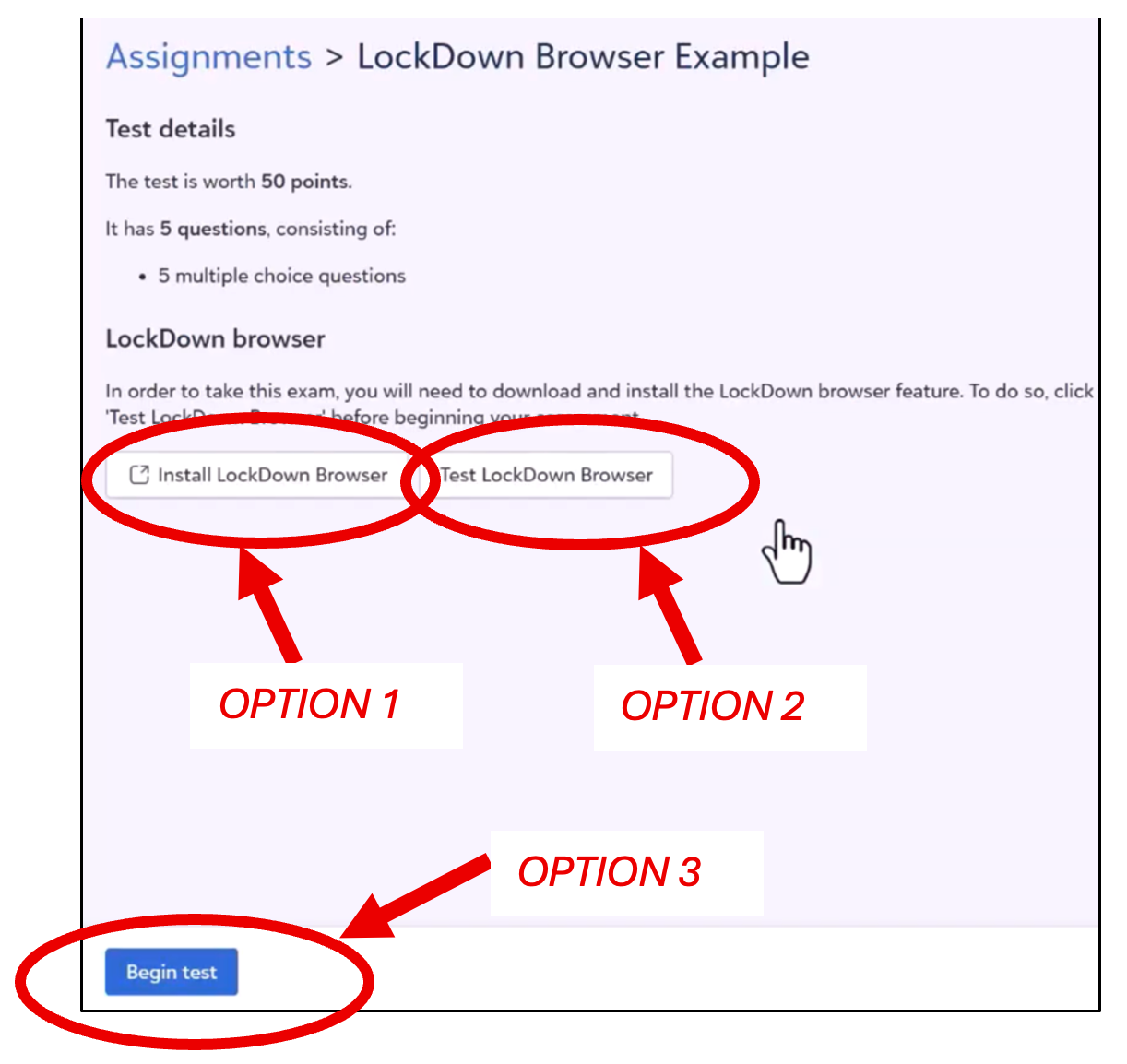
STEP 2) Select and open the appropriate assignment. When you open the assignment, you will see the following options. From here you can do the following:
OPTION 1 install/update the lockdown browser.
OPTION 2 test the lockdown browser if you have already installed it properly.
OPTION 3 begin the test when you have successfully installed the browser.
(instructions continue below on what each option will do when selected)
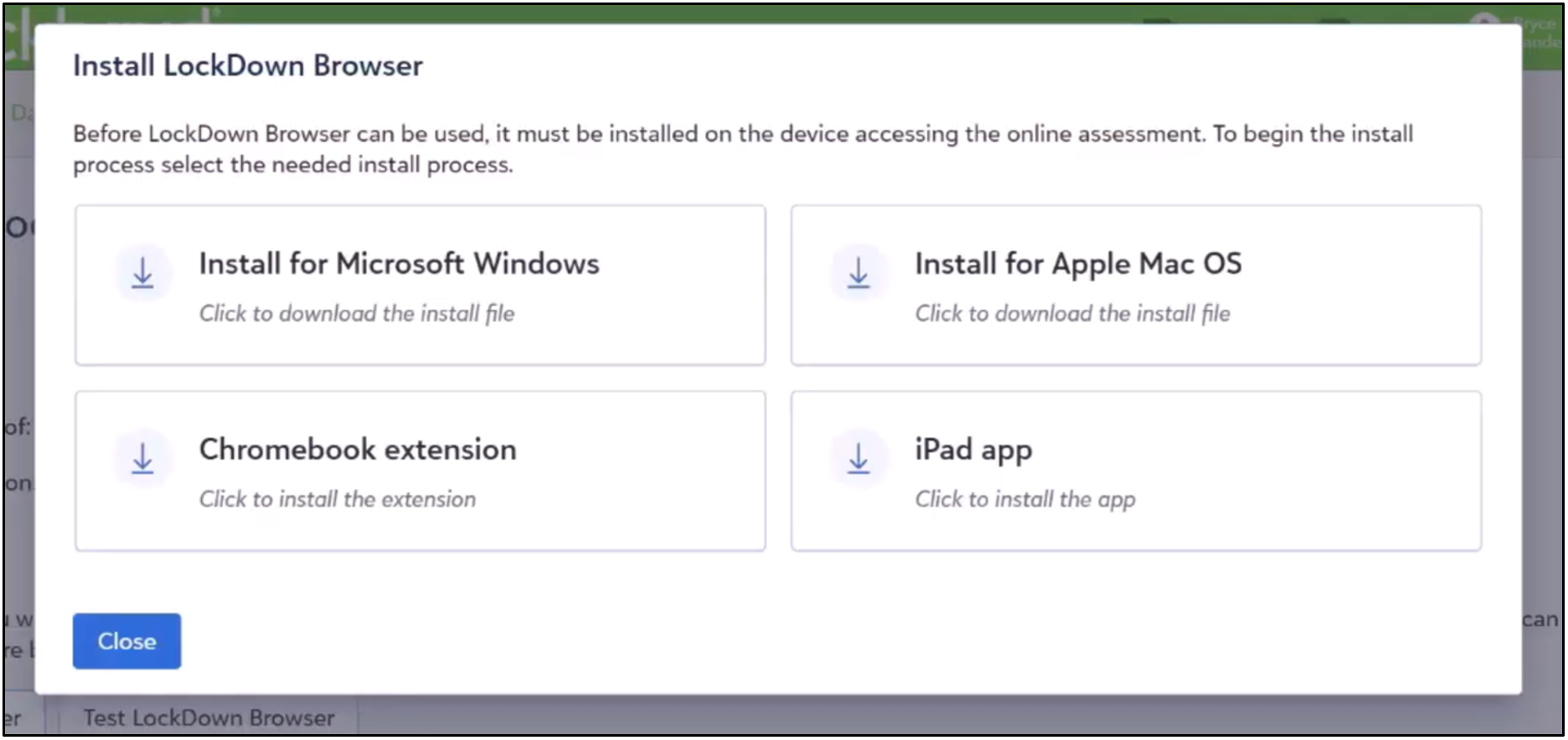
STEP 3) OPTION 1 If you select “Install Lockdown Browser” you are presented with install options. You must select the proper option for the device you are using.
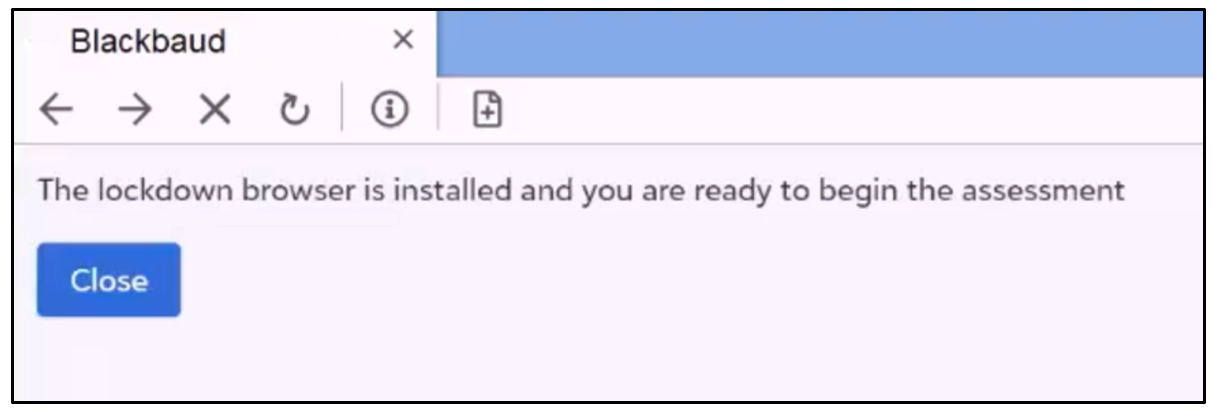
STEP 4) OPTION 2 If you choose “Test Lockdown Browser” the browser will open and if it’s installed properly will display a message indicating such.
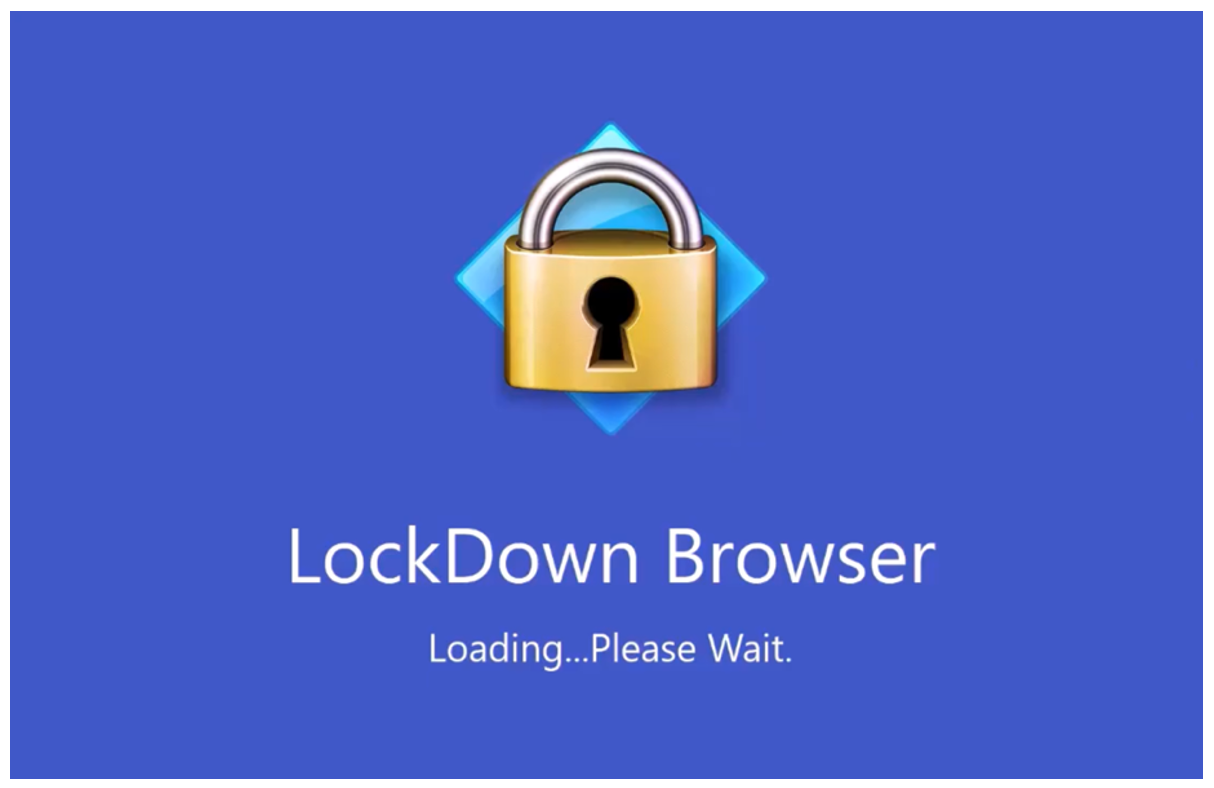
STEP 5) OPTION 3 If you select “Begin Test” you will be prompted to close all applications and continue to enter the test. Be sure they read pop-up windows carefully.
TROUBLESHOOTING:
• The browser states “You don’t have access…”
ISSUE: You have left or been kicked out of the assessment. When trying to re-enter the assessment, you get a notification that you don’t have access to the assessment. Also, the assessment shows as “paused” on your calendar.
SOLUTION: Ask your teacher to find you in their KnightSite class roster and select “Allow Continue” by your name.
• The browser states “The browser is not opening”
ISSUE: You have opened the assessment and hit “Begin Test” but the browser doesn’t open.
SOLUTION: Check to make sure all pop-up window instructions have been followed. For example, on a Mac, all open notifications must be closed before continuing.
• “Your computer is frozen or my screen is black”
ISSUE: You have opened the assessment and hit “Begin Test” and then the computer screen goes black or it seems the computer is frozen.
SOLUTION: Either another application is not being shut down by the browser or a similar issue has arisen. If this lasts for more than 1 minute, you should force reboot the computer by holding the power button until it reboots, then try again. This resolves the issue in 95% of these cases.
If you are still having issues with the Lockdown Browser, contact tech support immediately by emailing help@gsbschool.org and a technician will get to your classroom ASAP.
Was this article helpful?
That’s Great!
Thank you for your feedback
Sorry! We couldn't be helpful
Thank you for your feedback
Feedback sent
We appreciate your effort and will try to fix the article