ISSUE: When logging into an iPad app using Google, the wrong account attempts to login
Here are the instructions on how to remove saved accounts from an iPad so that you can Sign-in with Google on a GSB managed iPad.
NOTE: These instructions are for an iPad running iOS 18.0.1 or later. Earlier iPads may not have the "apps" section of settings and instead will have a direct link to Safari settings in the left hand column. The rest of the instructions will still apply.Step 1) Close all the open apps on the iPad by double clicking the home button and swiping the open apps "up" to close them, then pressing the home button again to return to the home screen.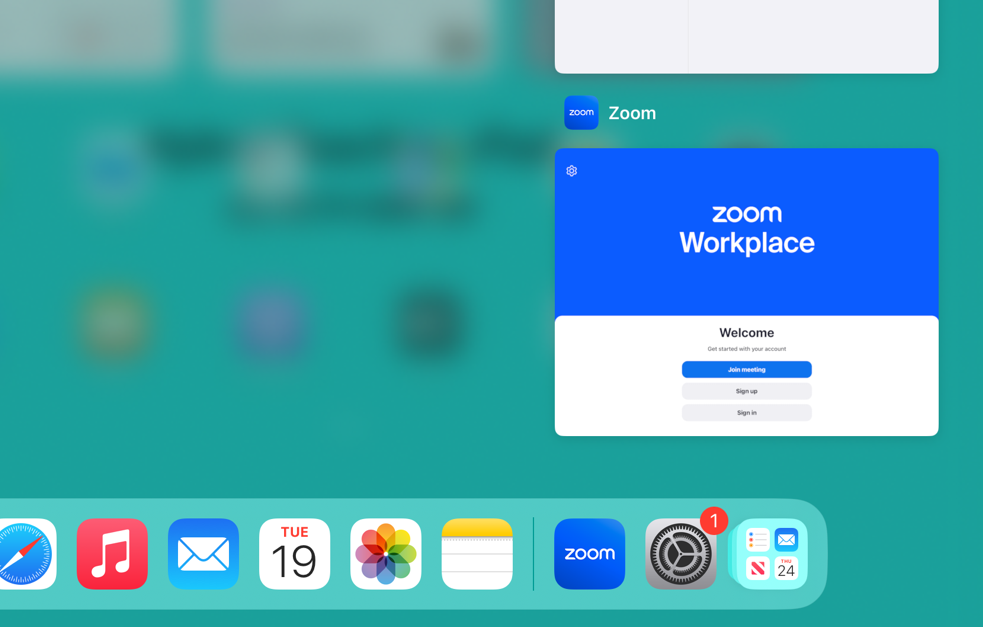
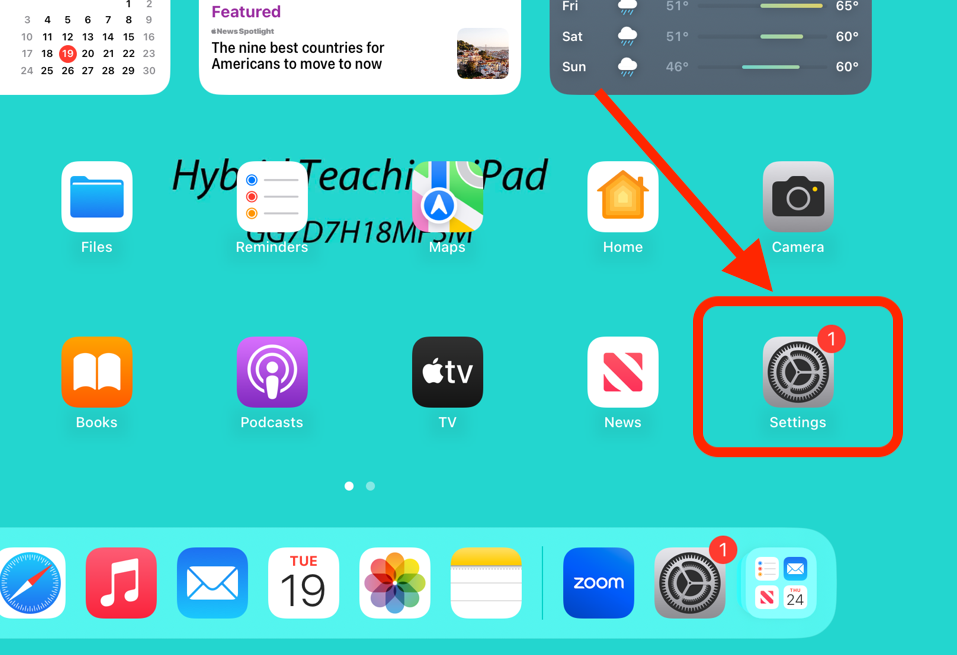
Step 2) Click the Settings icon to open the iPad settings menu.
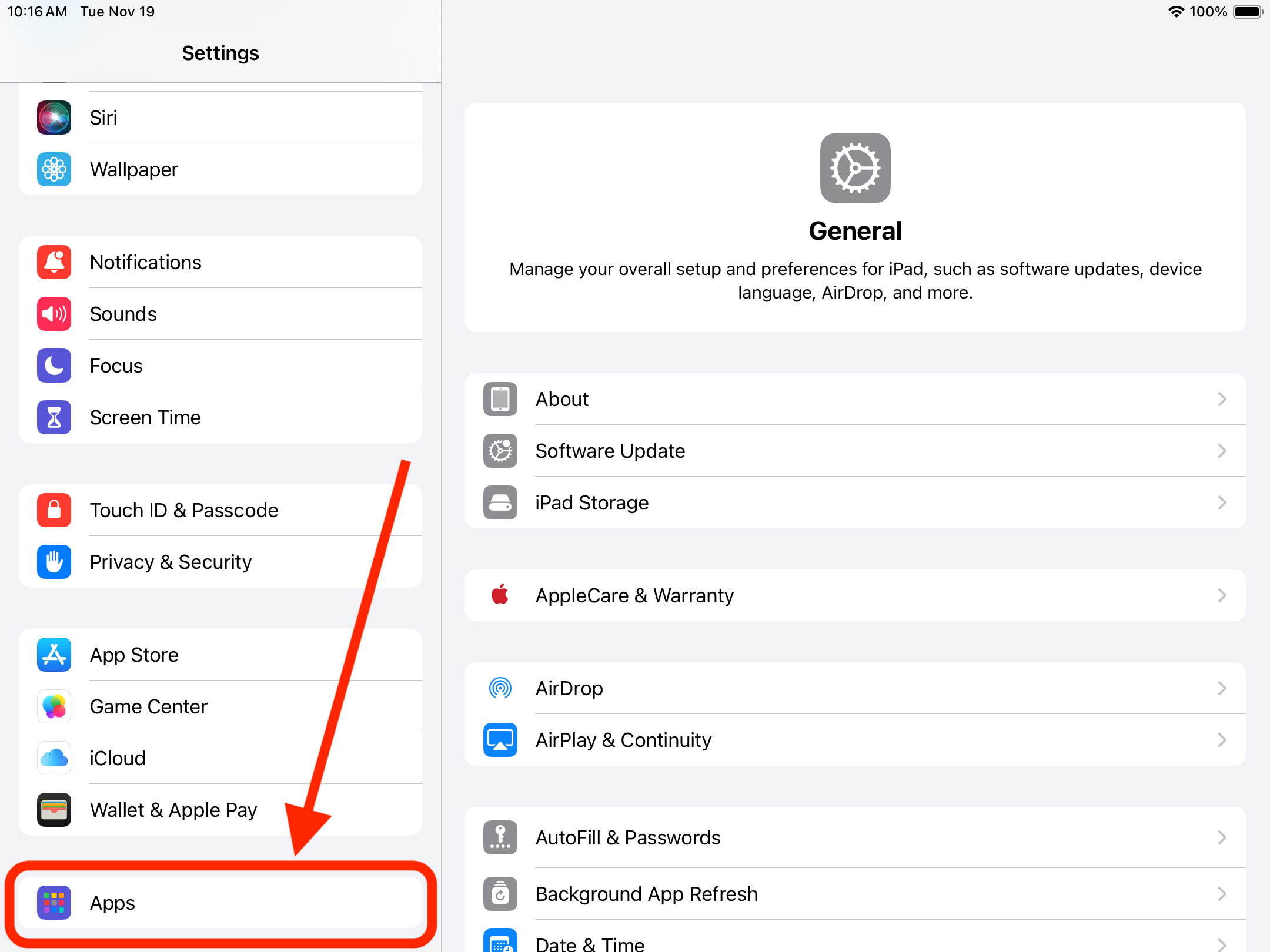
Step 3) Scroll down the settings menu and select Apps.
Step 4) Scroll down on the right hand side and select Safari.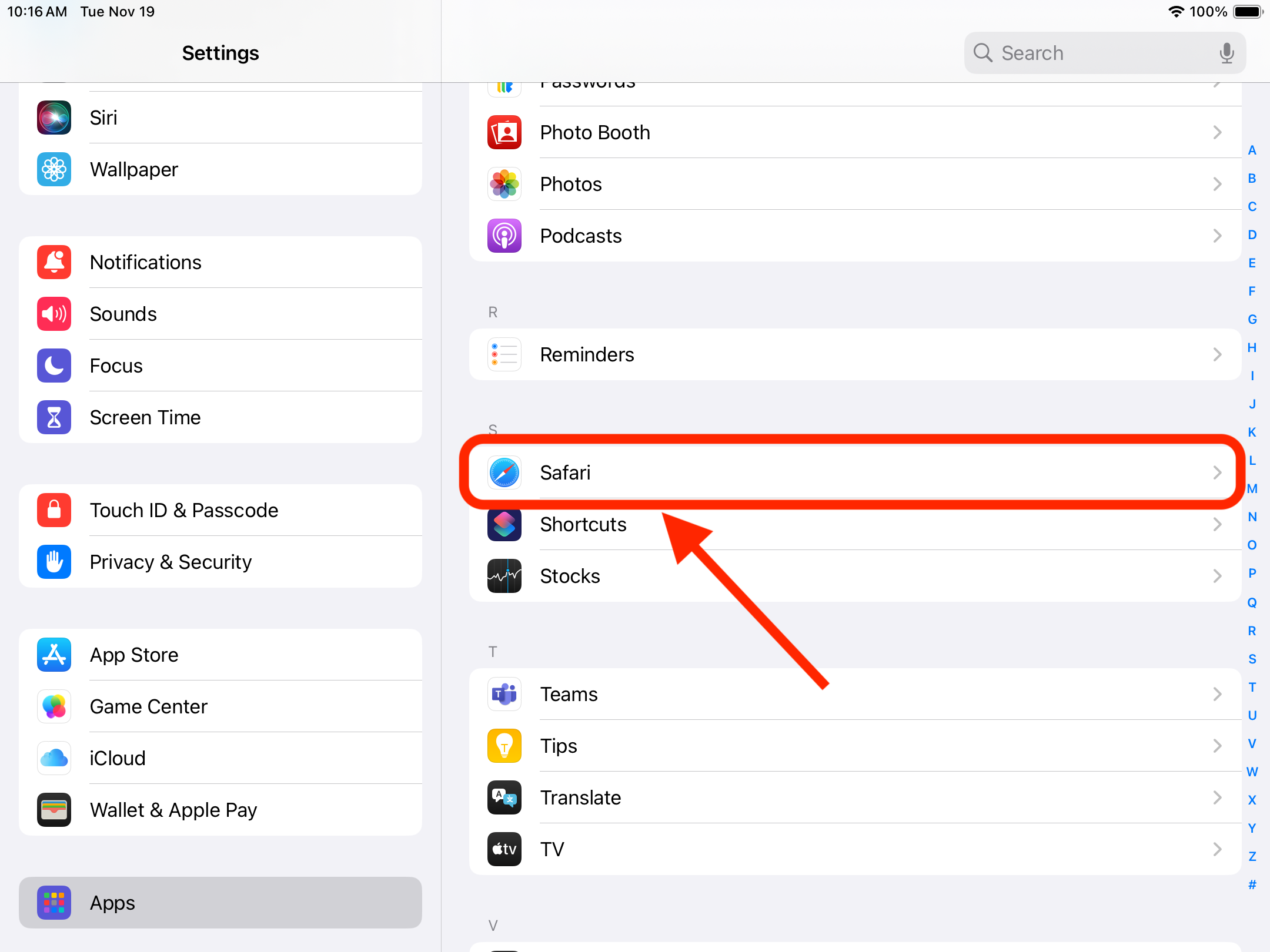
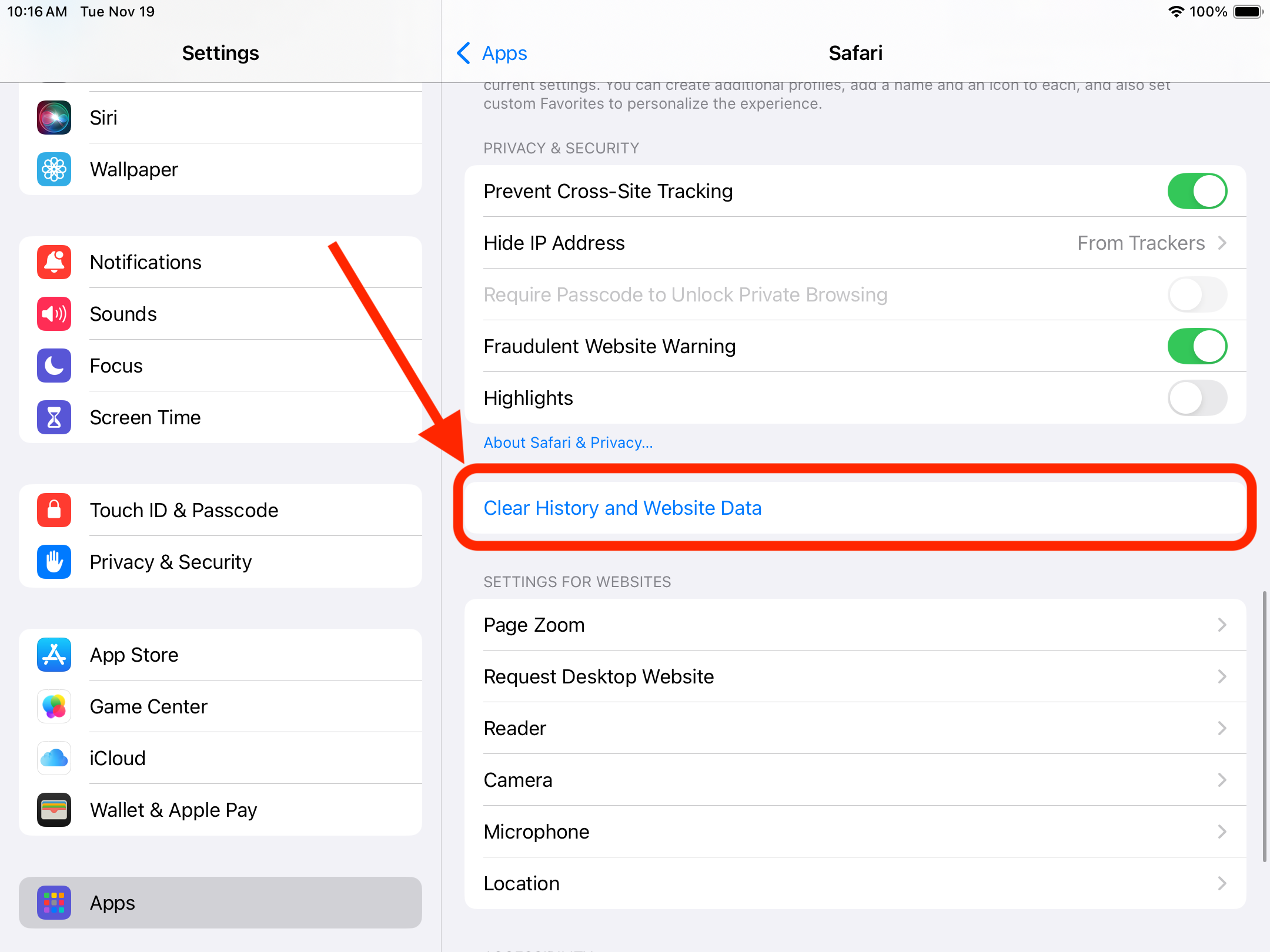
Step 5) Scroll down and select Clear History and Website Data.
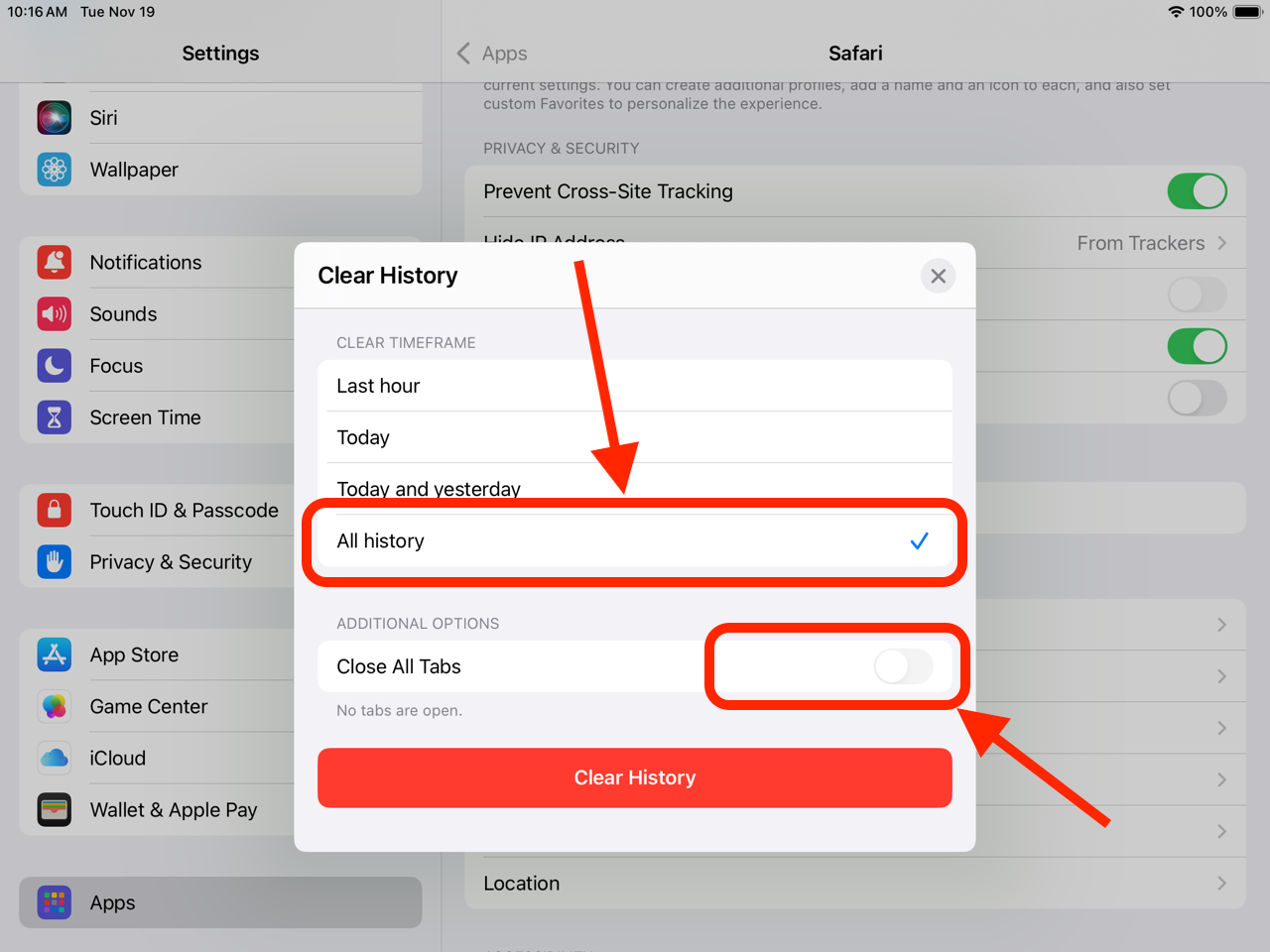
Step 6) Select All history and turn on the switch to Close All Tabs, then select Clear History.
NOTE: If you can't select Close All Tabs it's because there are no tabs open and there will be a message indicating that just below the label as pictured below.
You should then be able to open the app you were attempting to sign into and use the Sign-in with Google feature using our GSB email and password information.
If you encounter any issues logging in on an iPad, contact the Gill St. Bernard’s School Help Desk by email at help@gsbschool.org or via phone 908.234.1611 ext. 475
Was this article helpful?
That’s Great!
Thank you for your feedback
Sorry! We couldn't be helpful
Thank you for your feedback
Feedback sent
We appreciate your effort and will try to fix the article